Claude Desktop
Connect to a server (OAuth) — recommended
Section titled “Connect to a server (OAuth) — recommended”If someone — you, or someone in your household — is running the
self-hosted server, this is the recommended way to connect: you log into YNAB
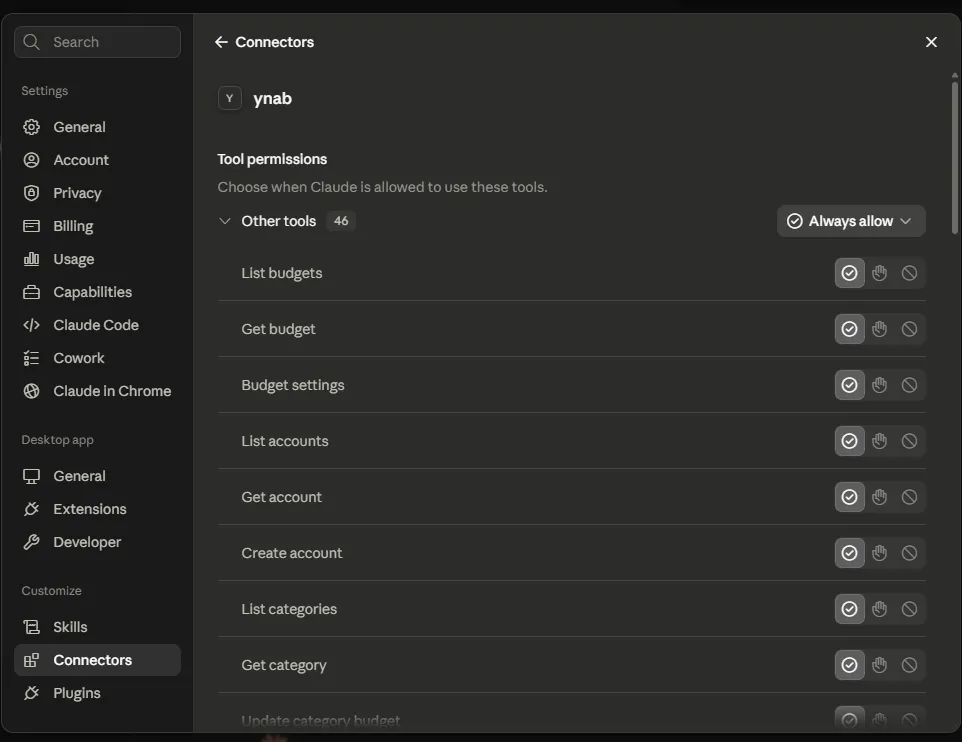
with your own account instead of sharing a token. Settings → Connectors → Add custom
connector, name it YNAB, and enter the server’s URL (https://<your-hostname>/mcp). Claude
Desktop walks you through logging into YNAB and choosing read-only or full access; the connection
persists after that. (Needs a Claude Desktop build with custom-connector / remote-MCP support.)
Alternate: stdio + Personal Access Token
Section titled “Alternate: stdio + Personal Access Token”No server to run, but a single token stands in for your own login — the right trade when you’re
the only person using this. Edit Claude Desktop’s config file —
%APPDATA%\Claude\claude_desktop_config.json on Windows,
~/Library/Application Support/Claude/claude_desktop_config.json on macOS — and add an entry
under mcpServers:
{ "mcpServers": { "ynab": { "command": "npx", "args": ["-y", "@redlinelabs/ynab-mcp"], "env": { "YNAB_TOKEN": "your-personal-access-token", "YNAB_BUDGET_ID": "last-used" } } }}Restart Claude Desktop. See the Quick start for where to get a token,
and Trust for what YNAB_READ_ONLY changes if you’d rather add it here too.
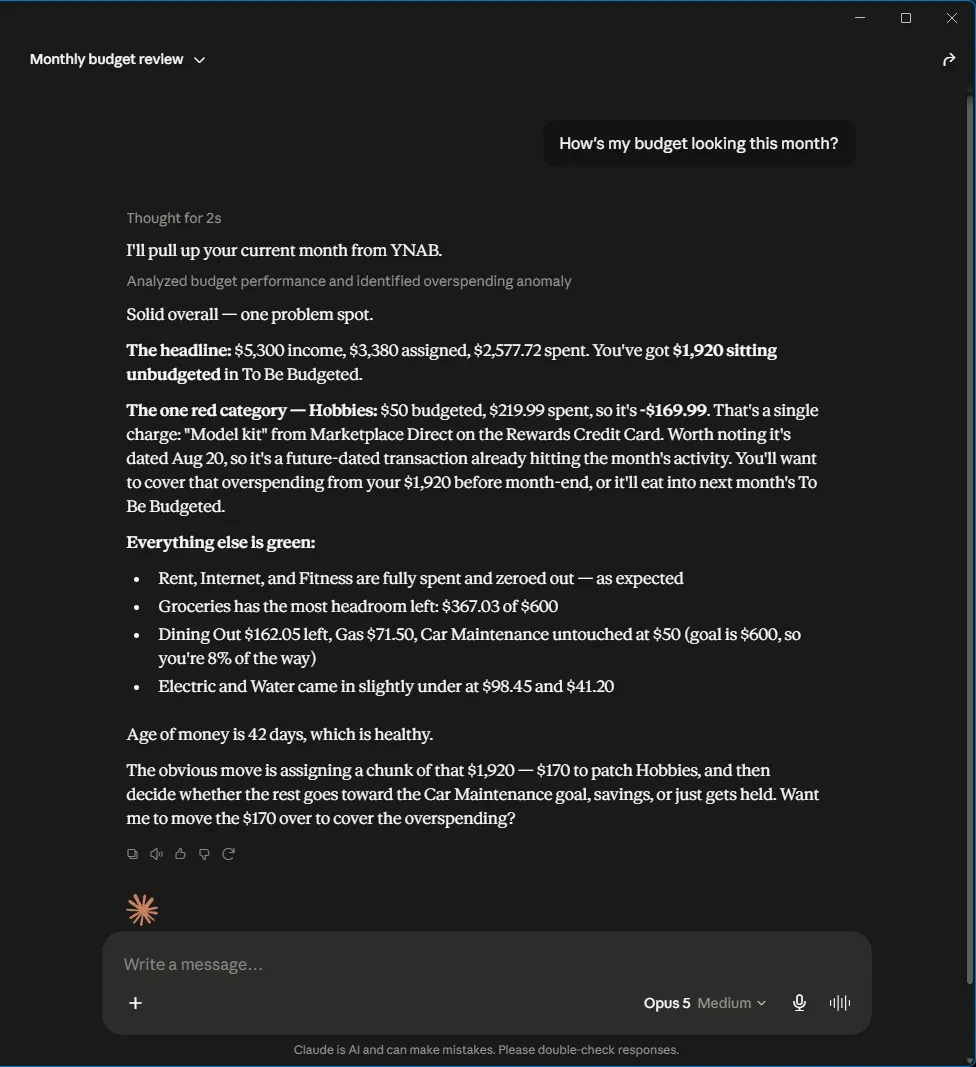
What it looks like
Section titled “What it looks like”Both captures below are real sessions against demo mode — a fictional budget, no credentials.